How to register for My GWW


Follow the steps below to register for My GWW, your place to manage your water account online.
Register for My GWW
What is multi-factor authentication?
Multi-factor authentication (MFA) is an extra security step used when logging in to your My GWW account. Instead of only entering a password, MFA requires you to also confirm your login using your email address, mobile phone number or an Authenticator app. You can read more about our multi-factor authentication and how to set it up at Multi-factor authentication.
Before you start
Your account number
You'll need the ten-digit account number that appears on your bill.
Multi-factor authentication
As part of the multi-factor authentication (MFA) verification process, you'll first verify your email address, then verify your identity using either your mobile phone or an authenticator app. Make sure you have access to your email and mobile during this process.
We will check the information you provide against the information we already have in our systems to help confirm your identity and keep your information safe online.
If you’re unsure of the information you’ve previously provided, call us on 13 44 99.
Steps
-
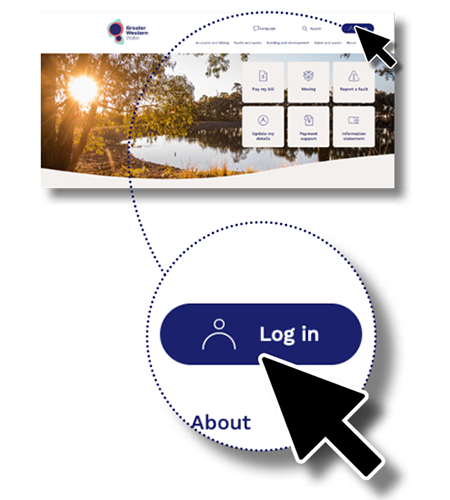
Go to gww.com.au and click ‘Log in’
-
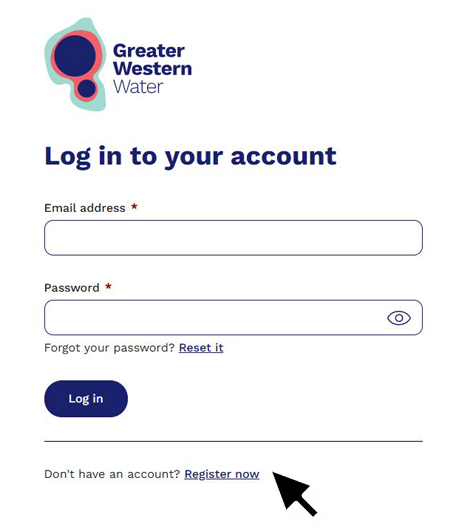
On the login screen, select ‘Register now’ to register for a new account.
-
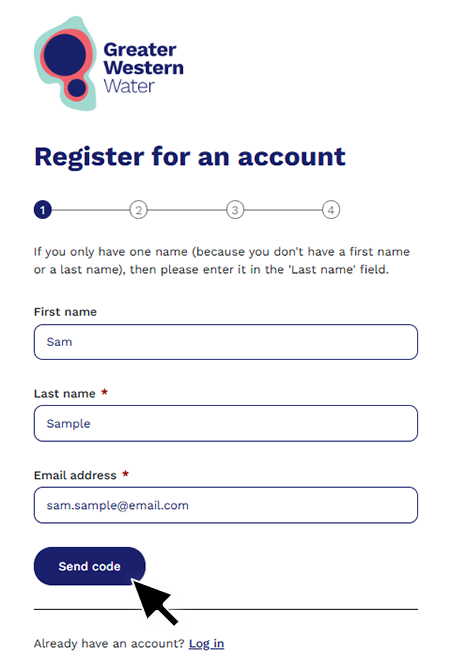
Enter your first name, last name and email address. Click ‘Send code’
-
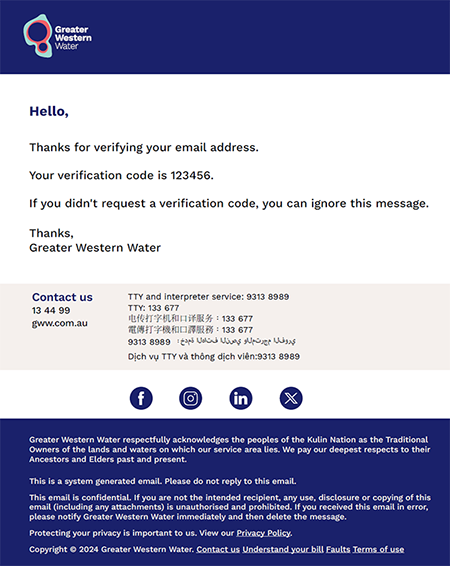
A 6-digit code will be emailed to you
-
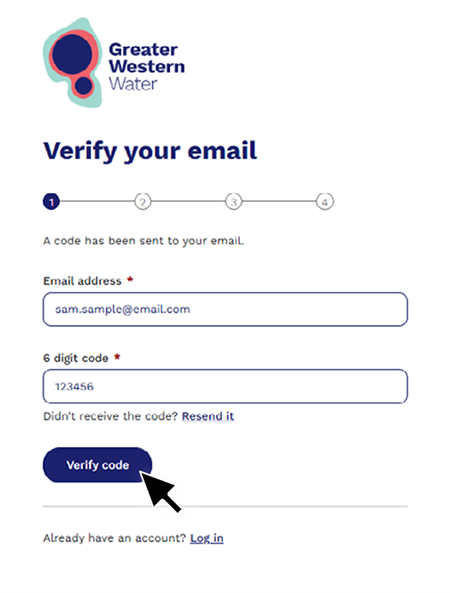
Enter the 6-digit code in the email and click ‘Verify code’.
-
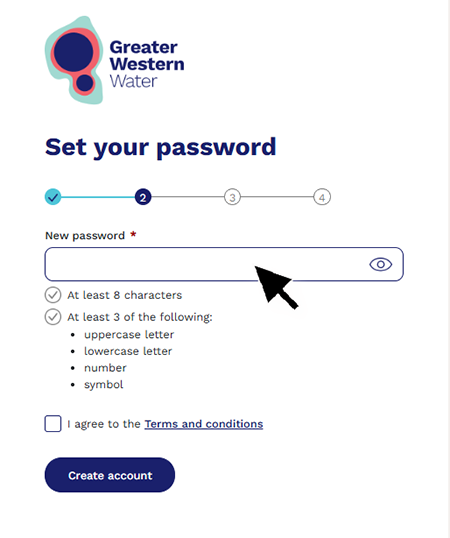
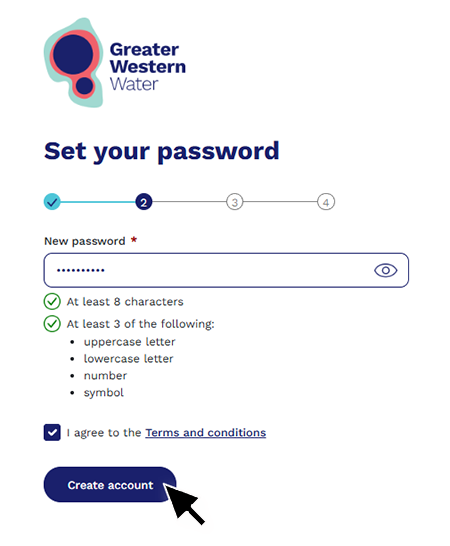
Enter a password.
-
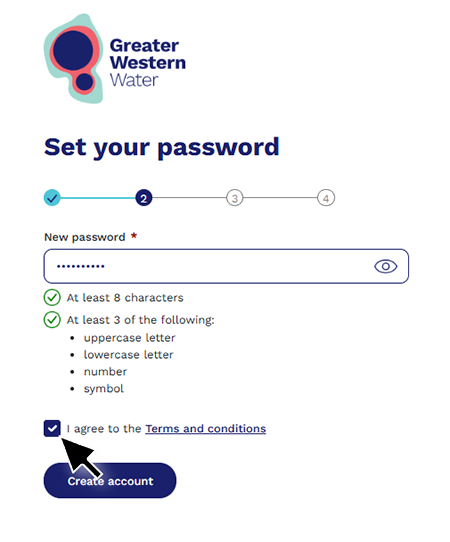
Read the terms and conditions and then tick ‘I agree to the terms and conditions’.
-
Click ‘Create account’.
-
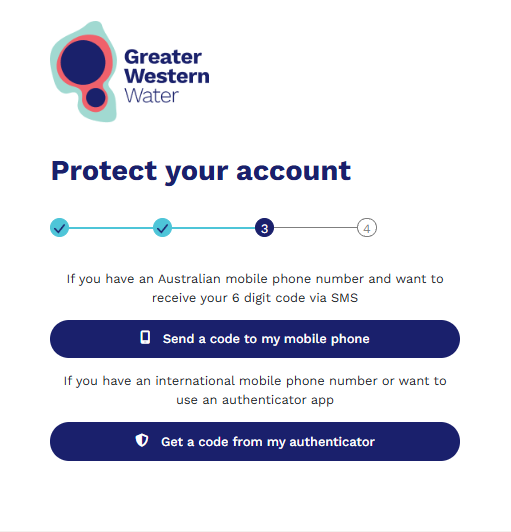
Protect your account by choosing how you’ll verify your identity—use your mobile number or an authenticator app.
-
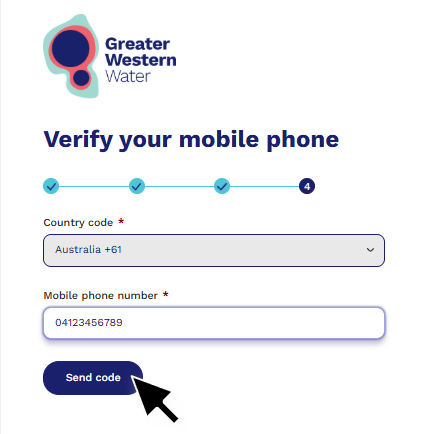
Verify using mobile phone
If you choose ‘Send a code’ to my mobile phone’, enter your mobile number and select ‘Send code'.
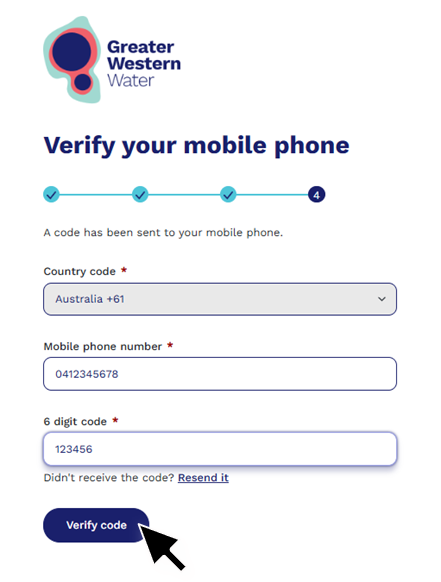
On the next screen, enter the 6-digit code sent to your phone, then select ‘Verify code’.
Continue to step 12. -
Verify using authenticator app
If you choose ‘Get a code from my authenticator’, download or open your authenticator app, then enter the account name and secret key or scan the QR code.
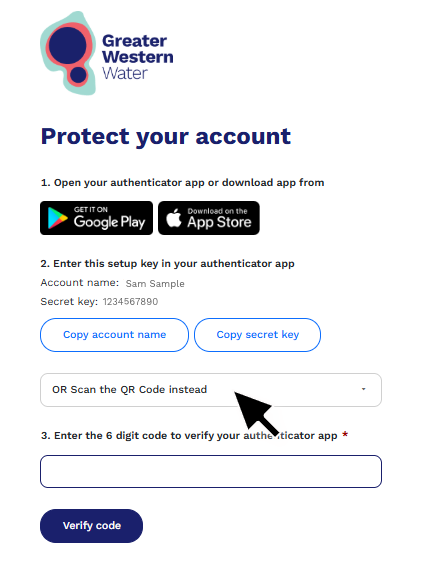
Enter the 6-digit code from your authenticator app, then select ‘Verify code’.
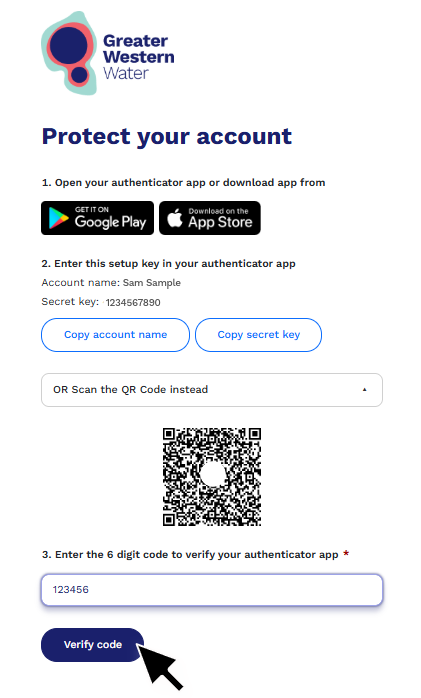
Continue to step 12. -
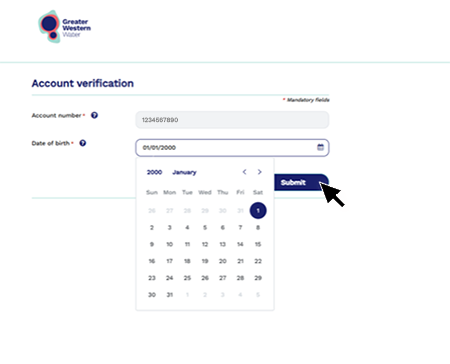
On the next screen, enter your 10-digit account number which you can find on your bill. Select ‘Next’.
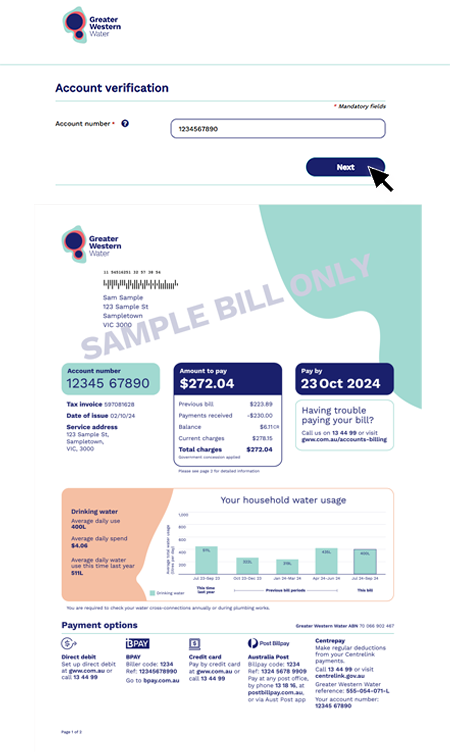
-
Enter your date of birth using the calendar or by typing it in. Click ‘Submit’ to finish your registration.